Applies to: New sites & migrations | Difficulty: Beginner–Intermediate | Time: 15–45 minutes
Before you begin
- Have your domain registrar login handy.
- Decide if you’ll use our nameservers or keep DNS elsewhere.
- Know which CMS you’ll install (example below uses WordPress).
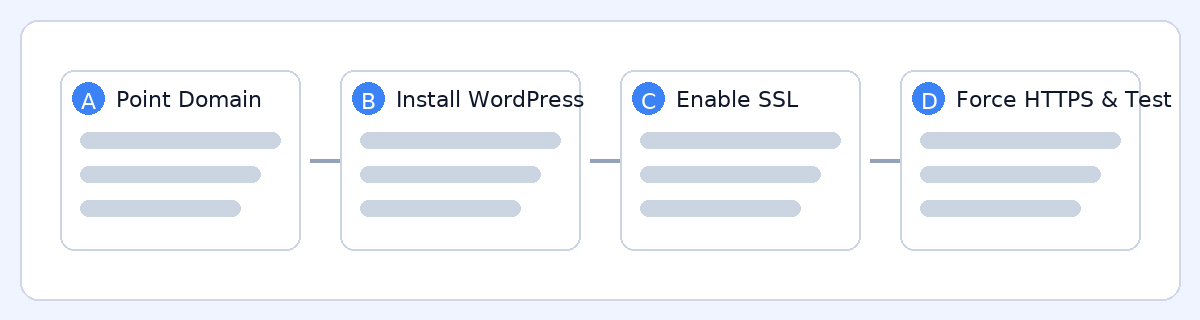
A) Point your domain
 Option 1 — Use our nameservers: change nameservers at your registrar to
 ns1.gaugehosting.com and ns2.gaugehosting.com (edit these if yours differ).
 Option 2 — Keep DNS elsewhere: create an A record for your root domain and
 www pointing to your server IP (find it in your Welcome Email or in cPanel → General Information).
 DNS propagation can take up to 24 hours globally (usually faster). You can work ahead while it propagates.
B) Install your site (WordPress example)
 In cPanel → WP Toolkit, click Install WordPress on your domain. Set a strong admin password and username.
- (Optional) Create a staging copy to test changes safely.
- Install your theme, essential plugins, and import content if you’re migrating.
C) Enable SSL
 Once the domain points to our server, go to cPanel → SSL/TLS Status and run AutoSSL (or wait ~15 minutes for it to issue automatically).
- Visit https://yourdomain.com and confirm the padlock.
- If you see mixed-content warnings, proceed to step D to force HTTPS and clean links.
D) Force HTTPS & final checks
 In WordPress, update Settings → General so both “WordPress Address (URL)” and “Site Address (URL)” start with
 https://.
- Add a redirect to force HTTPS (plugin or
.htaccess). Example.htaccesssnippet for Apache:
# Force HTTPS
RewriteEngine On
RewriteCond %{HTTPS} !=on
RewriteRule ^(.*)$ https://%{HTTP_HOST}%{REQUEST_URI} [L,R=301]
- Update any hard-coded
http://links (use a search/replace plugin if needed).  Final checks: test key pages/forms, admin login, and email send/receive.
- Create a manual backup now that the site is clean.
- Turn on auto-updates (or schedule managed updates).
Visual overview