The Client Portal lets you give other people access to your account safely. There are two ways:
- Users (recommended): invite a person to log in with their own email/password and choose their permissions.
- Contacts/Sub-Accounts: add an email-only contact for notifications, or enable Sub-Account to let that contact log in with selected permissions.
 Option A — Invite a User (recommended)
This is the modern way to share access without sharing your own login.
- Log in at
https://secure.gaugehosting.com/clientarea.php. - Go to Hello, Name! → User Management.
- Under Invite New User, enter the person’s email.
- Choose All Permissions or Choose Permissions and tick only what they need.
- Click Send Invite. They’ll receive an email to accept and set a password.
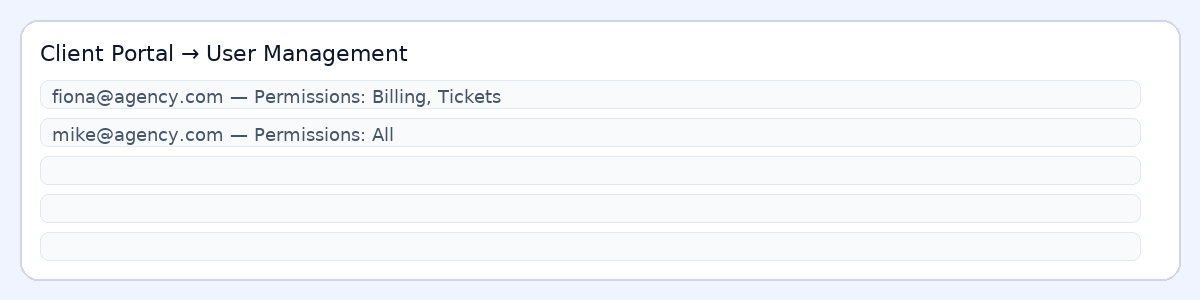
Notes: Only the account owner can invite and manage users. If you don’t see “User Management,” your host or theme may label it slightly differently.
 Option B — Add an Authorized Contact (and optionally make it a Sub-Account)
Use this for email-only recipients (billing, accounting, etc.) or to give them a separate login using the legacy Sub-Account option.
- In the Portal, go to Account → Contacts/Sub-Accounts → Add New Contact.
- Enter their details and tick which emails they should receive (Invoices, Quotes, Support Tickets, etc.).
- (Optional) Enable Sub-Account to let them log in → set a password → tick permissions (see below) → Save.
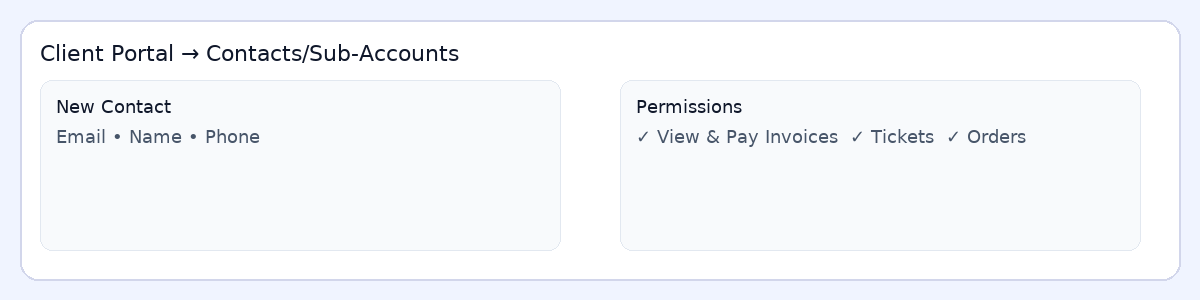
 Common permissions (what they allow)
- View & Pay Invoices — see/pay invoices and use saved payment methods.
- View & Accept Quotes — review quotes and accept them.
- View & Open Support Tickets — open/reply to tickets.
- Place New Orders/Upgrades/Cancellations — order or request changes.
- View Emails — see the account’s email history within the portal.
- Products/Services/Domains — view/manage service details where allowed.
Best practice: Give the least access needed. For example, your bookkeeper might only need “View & Pay Invoices” and “View Emails,” while a developer may need “Support Tickets” and service visibility but not billing.
 Example permission sets
| Role | Suggested permissions |
|---|---|
| Billing-only | View & Pay Invoices, View & Accept Quotes, View Emails |
| Support/Developer | View & Open Support Tickets, Products/Services visibility; no billing |
| Manager | Most permissions except ownership changes; consider enabling orders/upgrades |
 Remove or revoke access
- Users: Go to User Management → select the user → Remove Access (or edit permissions). Only the account owner can do this.
- Contacts/Sub-Accounts: Edit the contact → untick Sub-Account to remove login ability, or click Delete Contact to remove the contact entirely (email notifications stop).
Security tips
- Ask each person to enable 2FA on their own login.
- Use unique email addresses—don’t share a single mailbox among several people.
- Review access quarterly, especially after staffing changes.